
Мобильное приложение онлайн-чата
Отвечайте посетителям с телефона. Выберите платформу: установите Android-приложение онлайн-чата или на iPhone/iPad добавьте Afflixo на экран «Домой» и включите push-уведомления.
Android
Скачайте приложение afflixo (APK). Его нет в Google Play — установите напрямую с этой страницы или отсканируйте QR-код.
Версия 1.0.0
Скачать APKhttps://afflixo.com/com.afflixo.chat.apk
If the file is missing, build it from mobile/merchant-chat-apk and copy to public/com.afflixo.chat.apk.
Scan to download
Opens the APK download in your phone browser
- Scan the QR code or tap Download APK.
- When the download finishes, open it from the notification or Downloads app.
- If prompted, allow installation from this browser (Install unknown apps).
- Confirm install. Requires Android 7.0 (API 24) or newer.
После установки (Android)
- Откройте приложение afflixo и войдите с email продавца или сотрудника поддержки.
- Используйте пароль или одноразовый код из письма — так же, как в веб-кабинете.
- Если потребуется, введите адрес продавца (например, ваш магазин на afflixo.com).
- Разрешите уведомления, когда появится запрос, чтобы получать оповещения о новых сообщениях.
iPhone / iPad
Приложения в App Store нет. Добавьте сайт на экран «Домой» и открывайте онлайн-чат с этой иконки, чтобы получать push-уведомления в фоне (iOS 16.4+).
Apple не распространяет отдельную сборку онлайн-чата для продавцов через App Store. На iPhone и iPad добавьте afflixo.com на экран «Домой», откройте сайт с иконки и включите push-уведомления в онлайн-чате. Web Push на iOS требует iOS 16.4 или новее и работает только при запуске с экрана «Домой» (не в обычной вкладке Safari).
Sign in to your merchant store on afflixo.com (merchant login or your store URL, e.g.
/domain/your-store). Open Live Chat after sign-in.Safari (recommended)
Tap the Share button (square with an upward arrow) to the right of the address bar, scroll the share sheet, and choose Add to Home Screen. Confirm the name, then tap Add.
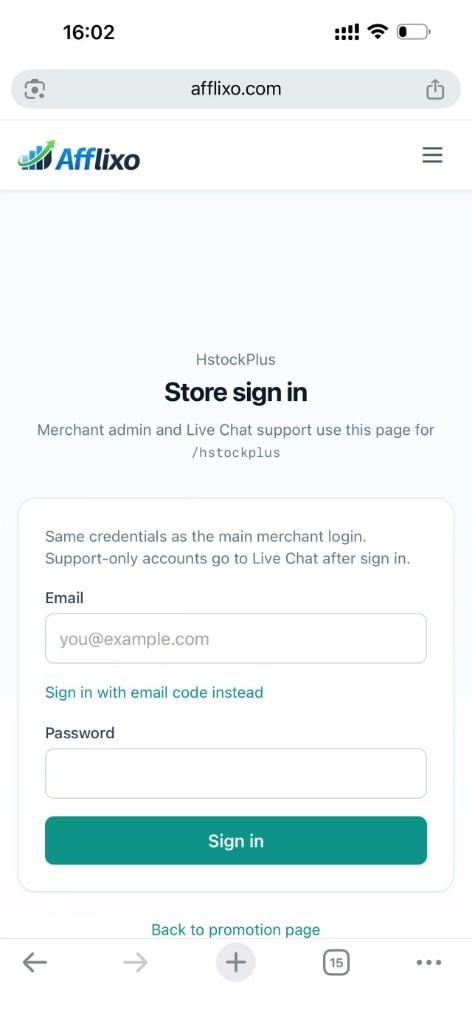
Safari → Share → Add to Home Screen Chrome on iOS (optional)
Tap the ⋯ menu at the bottom right, scroll the list, and select Add to Home Screen. (The menu is long; the option is below items such as Reload and Bookmarks.)
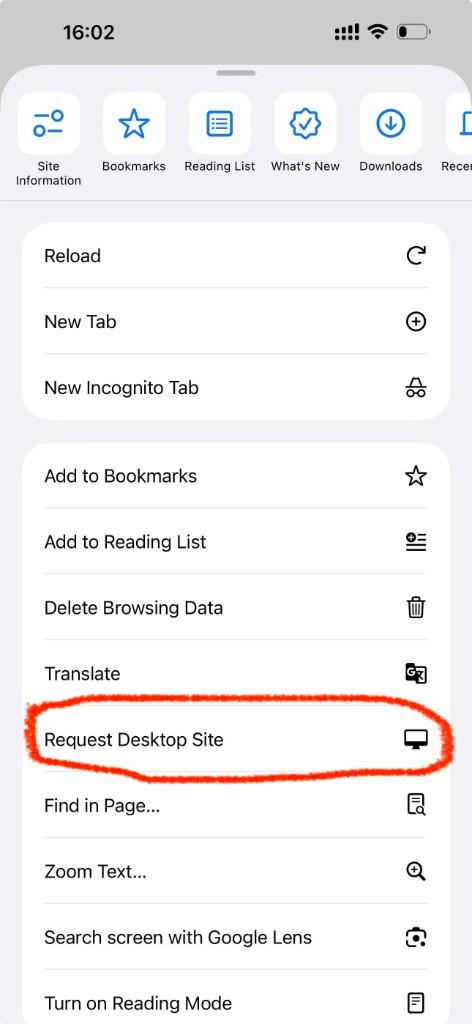
Chrome → ⋯ menu → scroll to Add to Home Screen Open afflixo from the new icon on your home screen (not from Safari or Chrome). Sign in and go to Live Chat.
Tap Alerts (top right), check Push notifications for visitor messages, and allow notifications when iOS asks. In-page sounds and toasts still work while the app is open; push alerts work in the background when the home-screen app is installed.
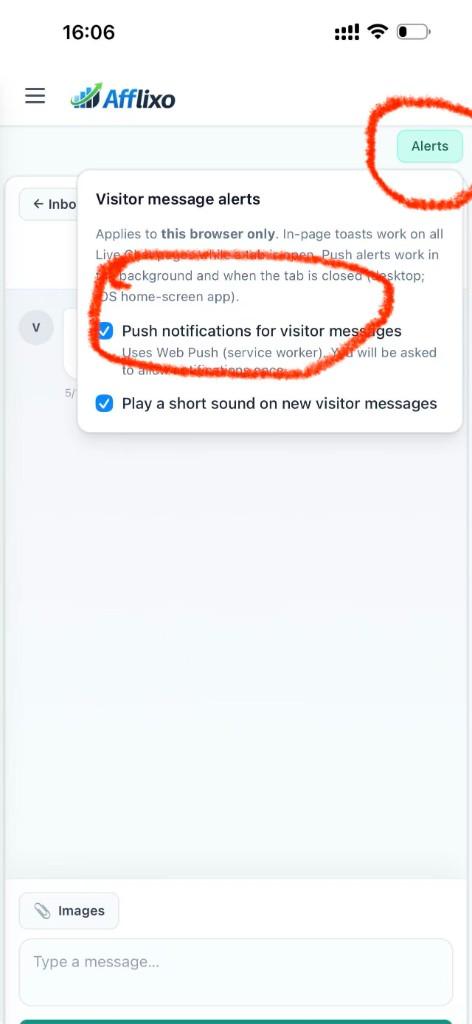
Live Chat → Alerts → enable push notifications
- If push stays disabled, confirm you opened the site from the home-screen icon, not a browser tab.
- If you denied notifications earlier, open iOS Settings → Notifications, find afflixo, and allow alerts.
- Email alerts in Chat settings still work on iOS without adding to the home screen.
Конфиденциальность
Android-приложение и версия для экрана «Домой» на iOS используют те же API онлайн-чата, что и веб-кабинет. Сессии входа и регистрация push-уведомлений хранятся на вашем устройстве. Ни то ни другое не заменяет полноценную веб-панель продавца.