
Live chat widget
Add the Afflixo live chat bubble to any page on your site. Visitors can message your team; staff reply in the merchant dashboard under Live Chat or the merchant mobile app. This page covers the embed snippet (separate from the affiliate tracking SDK).
Overview
- The widget is a single script:
https://afflixo.com/chat-widget.js - You must set
data-merchant-idto your public merchant slug (same value as in/domain/<slug>/…). - The browser loads widget settings from
/api/chat/widget/settings; your site's origin must be allowed in the merchant Chat → Settings (allowed domains and optional URL rules).
Embed snippet
Place the tag near the end of <body> or in <head> with async. Use your real slug instead of YOUR_MERCHANT_SLUG.
<!-- Replace YOUR_MERCHANT_SLUG with your merchant slug (same as /domain/YOUR_MERCHANT_SLUG/ in the dashboard) -->
<script src="https://afflixo.com/chat-widget.js" data-merchant-id="YOUR_MERCHANT_SLUG" async></script>
A working copy of this pattern (with slug from ?merchant=) also appears on the Integration demo page, which embeds /integration-demo.html.
Merchant slug & API origin
data-merchant-id — Required. Your merchant slug (lowercase), identical to the affiliate integration ?merchant= parameter.
data-api-base — Optional. Defaults to the origin of the script URL. Use this if you host chat-widget.js on a CDN but all API requests must go to your Afflixo app origin (e.g. https://afflixo.com).
<!-- Optional: script on a CDN, API calls still go to your Afflixo app -->
<script src="https://cdn.example.com/chat-widget.js"
  data-merchant-id="YOUR_MERCHANT_SLUG"
  data-api-base="https://afflixo.com"
  async></script>
Dashboard setup
In the merchant dashboard open Live Chat → Settings (path like /domain/<slug>/chat/settings):
- Widget visibility — Turn the widget on, set position, size, welcome text, and optional triggers.
- Allowed domains — Add every origin where the snippet will run (e.g.
https://www.example.com). Requests from other origins receive an error and the widget will not load. - Widget page rules — Optional paths or patterns where the bubble may appear.
- Support accounts — Staff with access to Live Chat need merchant admin or support roles to pick up conversations.
- Email notifications — Optional alert when a visitor sends a message. Outgoing mail uses the SMTP settings configured in Afflixo admin.
- Mobile (Android & iOS) — Android APK and iPhone/iPad home-screen setup on the mobile download page.
Merchant mobile (Android & iOS)
Merchant admins and support staff can reply from a phone using the same Live Chat inbox as the web dashboard — not a replacement for the full merchant admin panel.
Android — download APK
- Download page — https://afflixo.com/download/merchant-app (QR code and install steps).
- Direct APK — https://afflixo.com/com.afflixo.chat.apk (sideload; not on Google Play).
- Sign-in — Same merchant or support email as the web dashboard (password or email one-time code). Point the app at your merchant URL on afflixo.com when prompted.
After scanning the QR code, your browser downloads the APK. Open it from notifications, allow Install unknown apps if asked, then confirm install. Requires Android 7.0 (API 24) or newer. Allow notifications in the app for background message alerts.
iPhone / iPad — Add to Home Screen & push
Apple does not offer a separate App Store build. On iOS, add afflixo.com to the home screen, open Live Chat from that icon, then enable push under Alerts. Web Push requires iOS 16.4+ and only works from the home-screen app (not a normal browser tab).
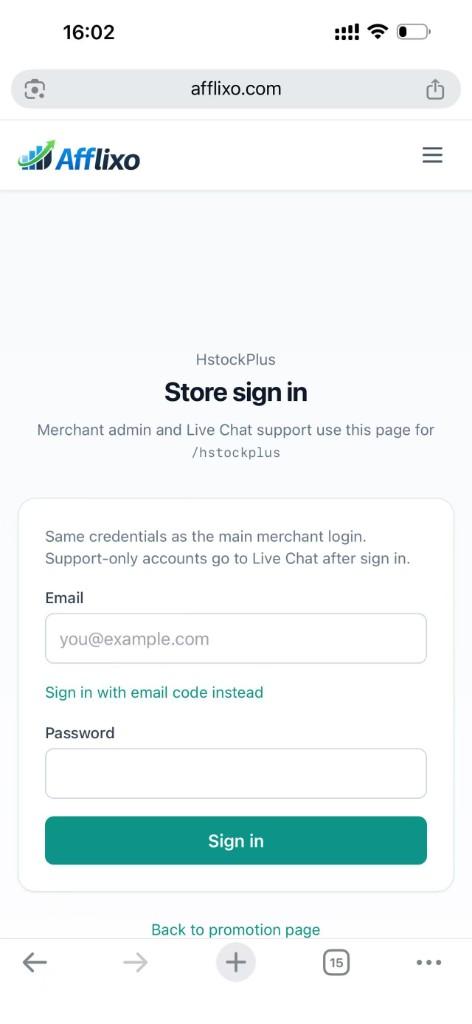
Sign in to your merchant store on afflixo.com (merchant login or your store URL, e.g.
/domain/your-store). Open Live Chat after sign-in.Safari (recommended)
Tap the Share button (square with an upward arrow) to the right of the address bar, scroll the share sheet, and choose Add to Home Screen. Confirm the name, then tap Add.
Safari → Share → Add to Home Screen Chrome on iOS (optional)
Tap the ⋯ menu at the bottom right, scroll the list, and select Add to Home Screen. (The menu is long; the option is below items such as Reload and Bookmarks.)
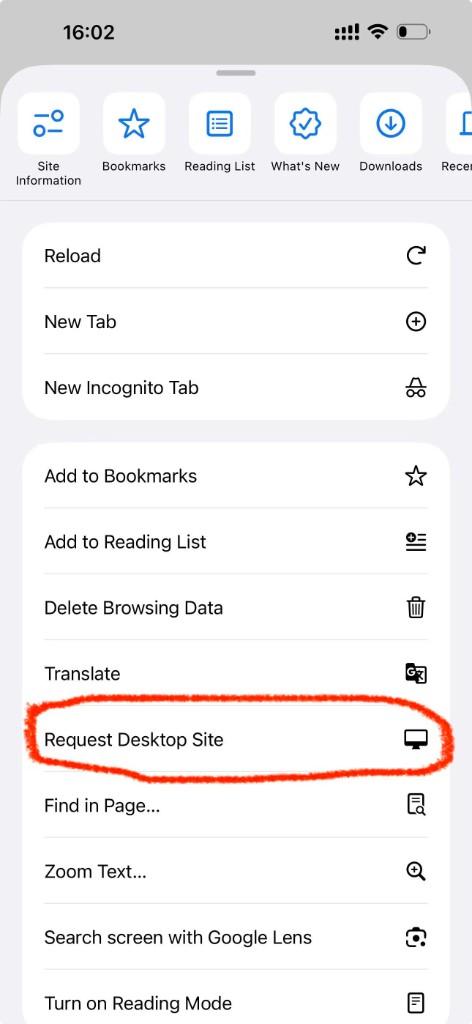
Chrome → ⋯ menu → scroll to Add to Home Screen Open afflixo from the new icon on your home screen (not from Safari or Chrome). Sign in and go to Live Chat.
Tap Alerts (top right), check Push notifications for visitor messages, and allow notifications when iOS asks. In-page sounds and toasts still work while the app is open; push alerts work in the background when the home-screen app is installed.
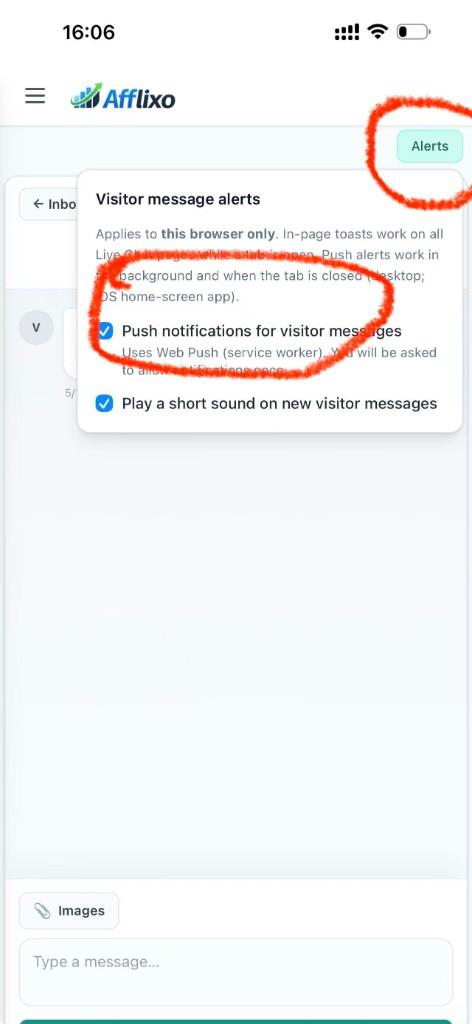
Live Chat → Alerts → enable push notifications
Full screenshots and steps: mobile download page.
Visitor experience
- Visitors get a stable anonymous id in
localStorage(keyaffilixo_chat_visitor_id) so returning chats can continue on the same browser. - If pre-chat fields are enabled in settings, visitors complete the form before the composer appears.
- After a chat ends, merchants may enable a short satisfaction survey inside the widget.
Troubleshooting
- Widget never appears — Check the browser console for
[Affilixo Chat]messages. Common causes: missingdata-merchant-id, wrong script URL, or domain not allowlisted. - 403 / access denied from API — Add your exact site origin to allowed domains; wait for cache if you just saved settings.
- HTTPS — Use
httpsscript URLs on production pages so cookies and mixed content behave correctly.
Technical detail: the widget talks to public routes under /api/chat/* (CORS-enabled). It does not use your Merchant API JWT — only the visitor token issued after pre-chat.