
Live Chat app on mobile
Reply to visitor messages from your phone. Choose your platform below: install the Android Live Chat app, or on iPhone/iPad add Afflixo to your home screen and enable push alerts.
Android
Download the afflixo app (APK). Not on Google Play — install directly from this page or scan the QR code.
Version 1.0.0
Download APKhttps://afflixo.com/com.afflixo.chat.apk
If the file is missing, build it from mobile/merchant-chat-apk and copy to public/com.afflixo.chat.apk.
Scan to download
Opens the APK download in your phone browser
- Scan the QR code or tap Download APK.
- When the download finishes, open it from the notification or Downloads app.
- If prompted, allow installation from this browser (Install unknown apps).
- Confirm install. Requires Android 7.0 (API 24) or newer.
After install (Android)
- Open the afflixo app and sign in with your merchant or support email.
- Use password or email one-time code, same as the web dashboard.
- Enter your merchant URL if prompted (e.g. your store on afflixo.com).
- Allow notifications when prompted to receive new message alerts.
iPhone / iPad
There is no App Store app. Add the site to your home screen, then open Live Chat from that icon to enable background push notifications (iOS 16.4+).
Apple does not distribute a separate App Store build for merchant live chat. On iPhone and iPad, add afflixo.com to your home screen, open it from the icon, then turn on push in Live Chat. Web Push on iOS requires iOS 16.4 or later and only works when launched from the home-screen app (not a regular Safari tab).
Sign in to your merchant store on afflixo.com (merchant login or your store URL, e.g.
/domain/your-store). Open Live Chat after sign-in.Safari (recommended)
Tap the Share button (square with an upward arrow) to the right of the address bar, scroll the share sheet, and choose Add to Home Screen. Confirm the name, then tap Add.
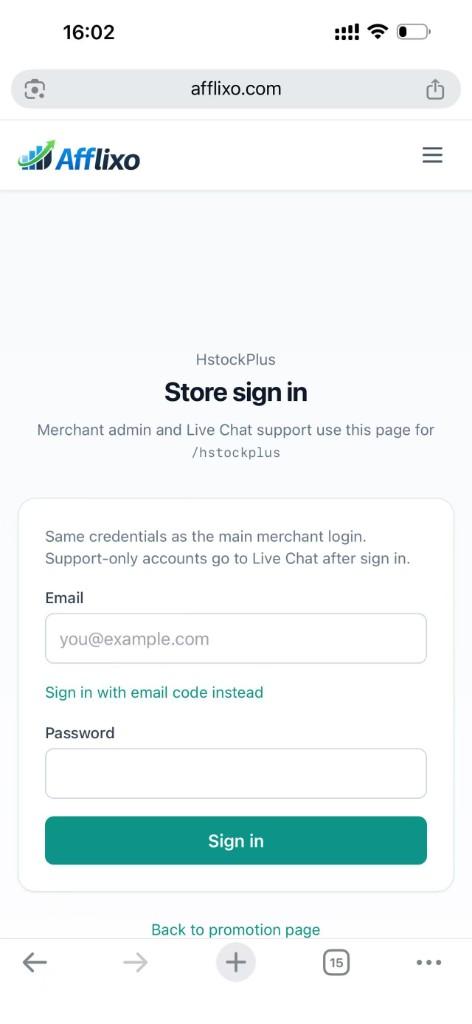
Safari → Share → Add to Home Screen Chrome on iOS (optional)
Tap the ⋯ menu at the bottom right, scroll the list, and select Add to Home Screen. (The menu is long; the option is below items such as Reload and Bookmarks.)
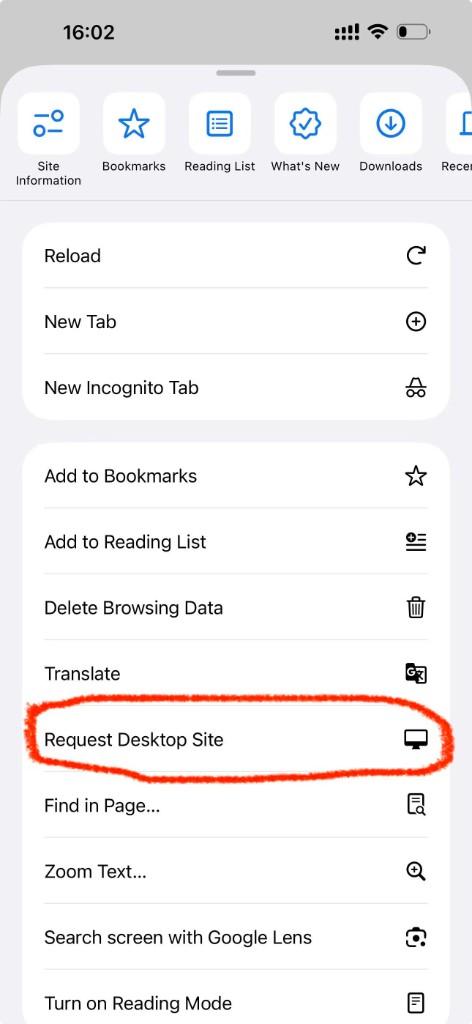
Chrome → ⋯ menu → scroll to Add to Home Screen Open afflixo from the new icon on your home screen (not from Safari or Chrome). Sign in and go to Live Chat.
Tap Alerts (top right), check Push notifications for visitor messages, and allow notifications when iOS asks. In-page sounds and toasts still work while the app is open; push alerts work in the background when the home-screen app is installed.
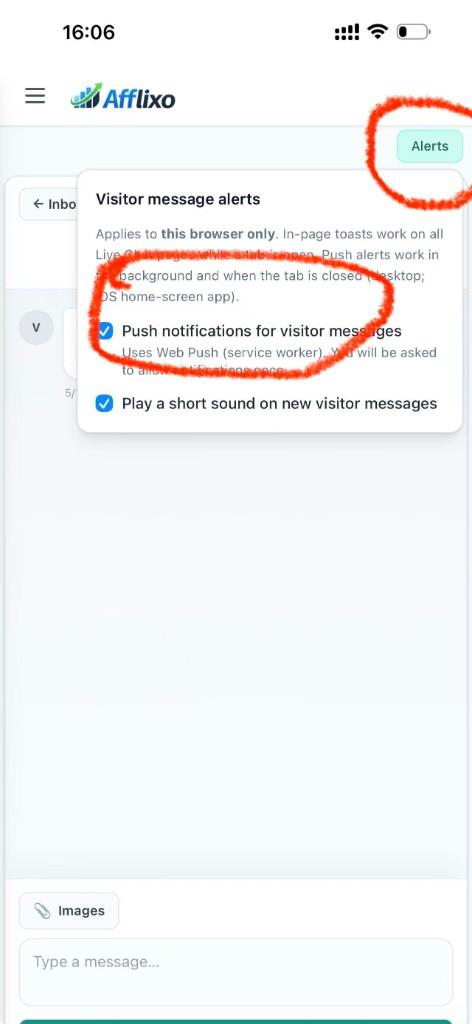
Live Chat → Alerts → enable push notifications
- If push stays disabled, confirm you opened the site from the home-screen icon, not a browser tab.
- If you denied notifications earlier, open iOS Settings → Notifications, find afflixo, and allow alerts.
- Email alerts in Chat settings still work on iOS without adding to the home screen.
Privacy
The Android app and iOS home-screen experience use the same live-chat APIs as the web dashboard. Login sessions and push registration are stored on your device. Neither replaces the full merchant admin panel on the web.